The AI-native terminal workspace
Your terminal workspace
Asura is a native terminal workspace with an AI agent that operates your machines, local and remote, over plain SSH. Terminal, browser, files, databases, Docker, Git, and monitoring in one window. Nothing to install on your servers.
- Ghostty terminal engine
- Embedded browser and dev tools
- Fully AI-agent controlled
- A VPN per workspace
- Encrypted and secure
Why it exists
Four things you won't find in your current terminal
Browse a remote's localhost
Your dev server runs on a cloud box at localhost:3000. Open a browser panel, pick that SSH connection, type the address. Asura routes the panel through the tunnel and the page loads, private subnet dashboards included. No VPN, no ssh -L ritual. And the agent can browse those pages too.
An agent with zero footprint
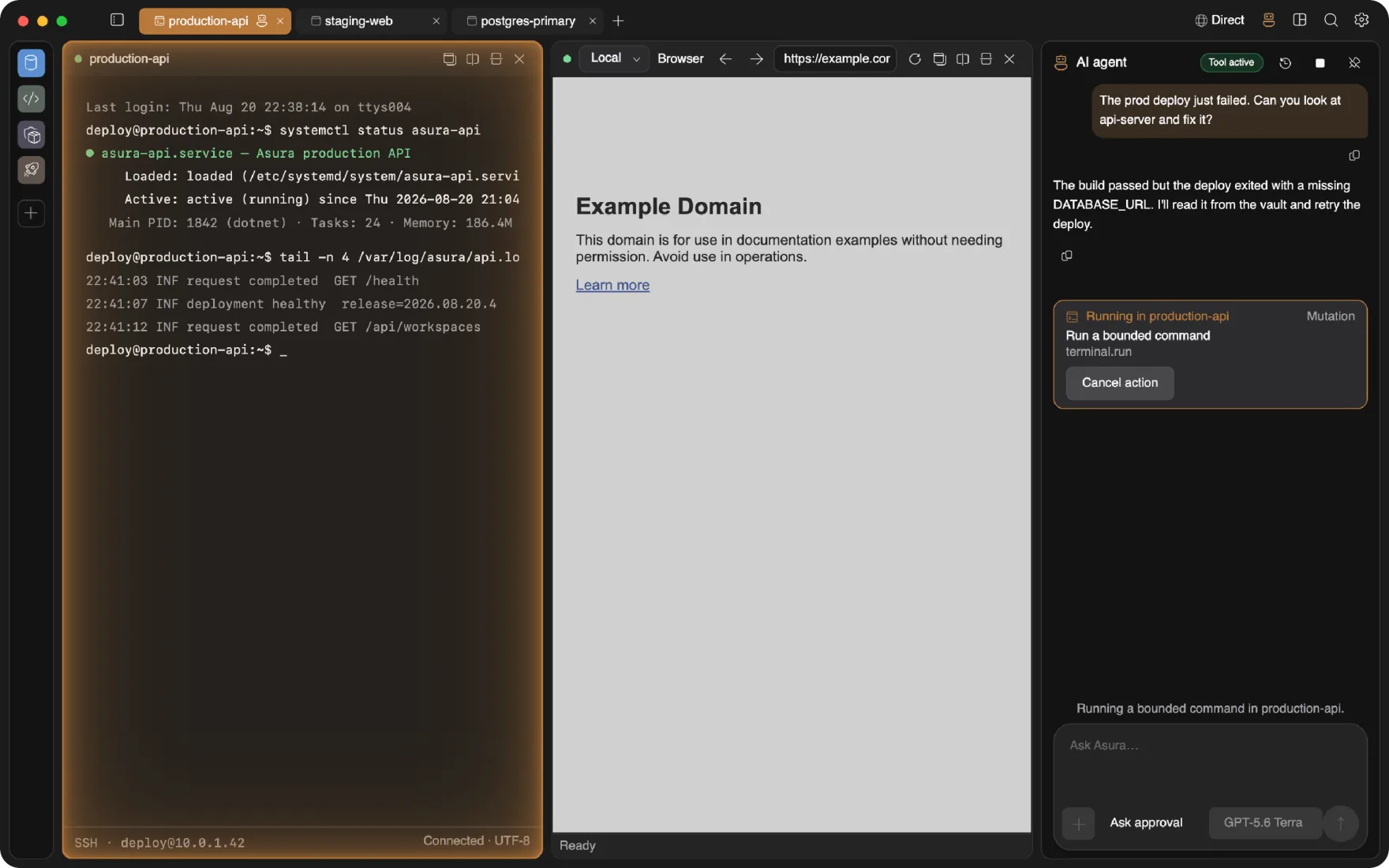
The AI agent runs inside the app on your machine and reaches servers over the SSH session you already have. It reads the terminal, types, handles interactive prompts and TUIs. The remote host sees an ordinary SSH user, because that is all there is.
Every panel goes remote
Files, databases, Docker, processes, system stats: each panel has a host dropdown. Flip it from Local to a connection and the same panel works against the remote machine, over SSH, without a remote agent. One app instead of seven.
A workspace in its own VM, on its own VPN
Flip a switch and the whole workspace runs in a persistent, lightweight Linux VM: own kernel, own filesystem, own network. Give it its own tunnel too: the corporate AnyConnect, your homelab's Tailscale, a WireGuard peer. Everything inside goes out that way and nothing else on your machine does. macOS today; Linux and Windows planned.
The agent
An agent that works where you work
Ask it to fix a failed deploy and it reads the logs, checks the service, and proposes the command. It runs in-process, native .NET, no Node sidecar on your laptop and nothing at all on the server.
- Types like you do: real keystrokes in real terminals, so it can drive
vim, installers, and cloud CLI wizards, not just run commands. - Drives the browser too. It reads the page as an accessibility snapshot and clicks, fills, and checks elements by reference, never blind coordinates. Point the browser through an SSH tunnel and that includes your remote internal web apps.
- Nothing happens without you. Every change waits for your one-click approval, or a run window you grant on your terms.
- Touch the keyboard and the agent steps aside instantly. You always win.
- It never sees your secrets. Keys and passwords stay locked in your OS vault.
- Searches the web when a task needs fresh information, and plugs into your own tools over MCP. Same approvals on every call.
Bring your own model
- Anthropic Claude
- OpenAI
- Google Gemini
- xAI Grok
- DeepSeek
- Moonshot AI
- OpenRouter
- GitHub Copilot
- Amazon Bedrock
- Ollama
- OpenAI-compatible endpoints
One window
The panels
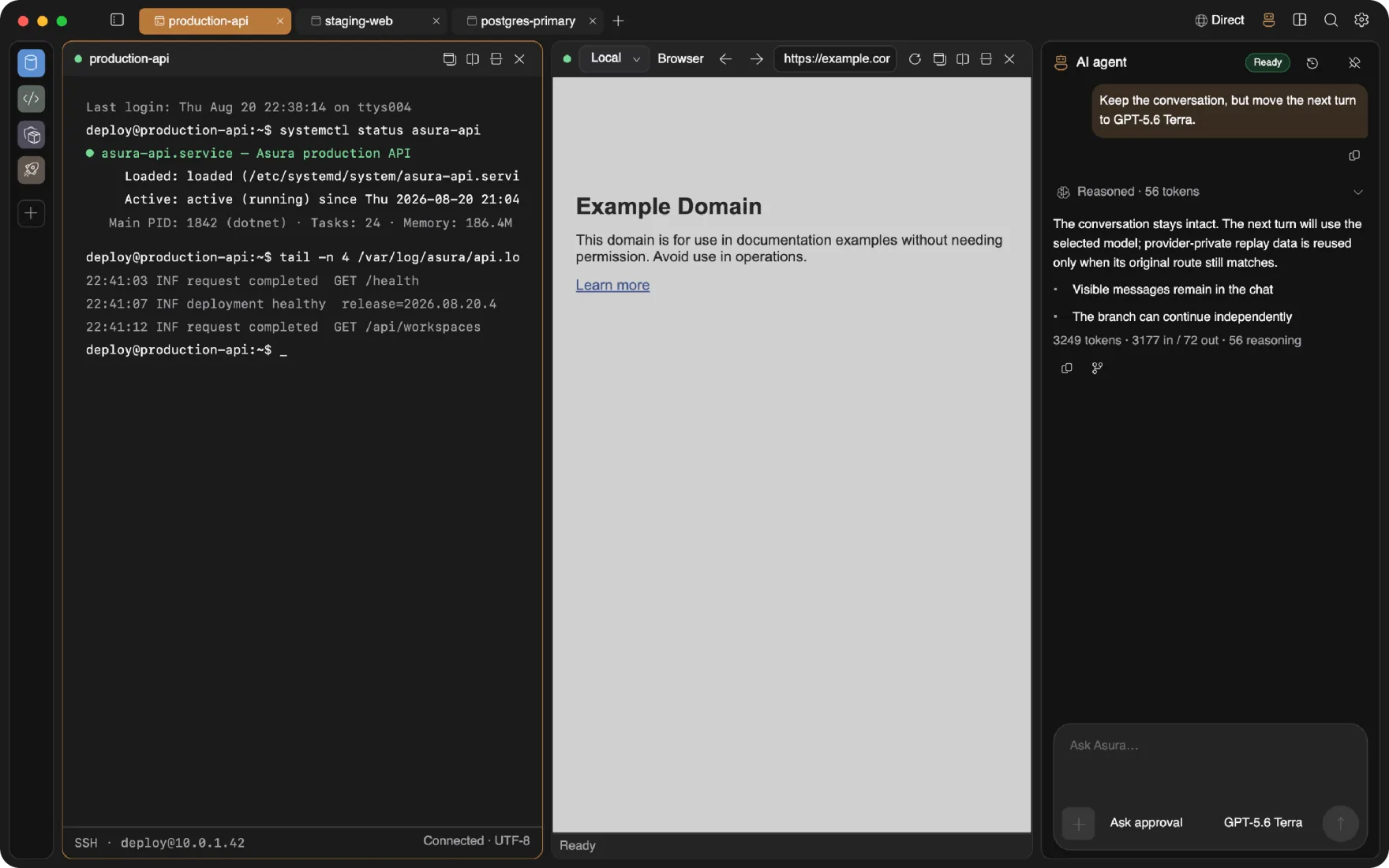
Split them, stack them, save the layout as a screen you can reopen with one click. Every panel picks its own host.
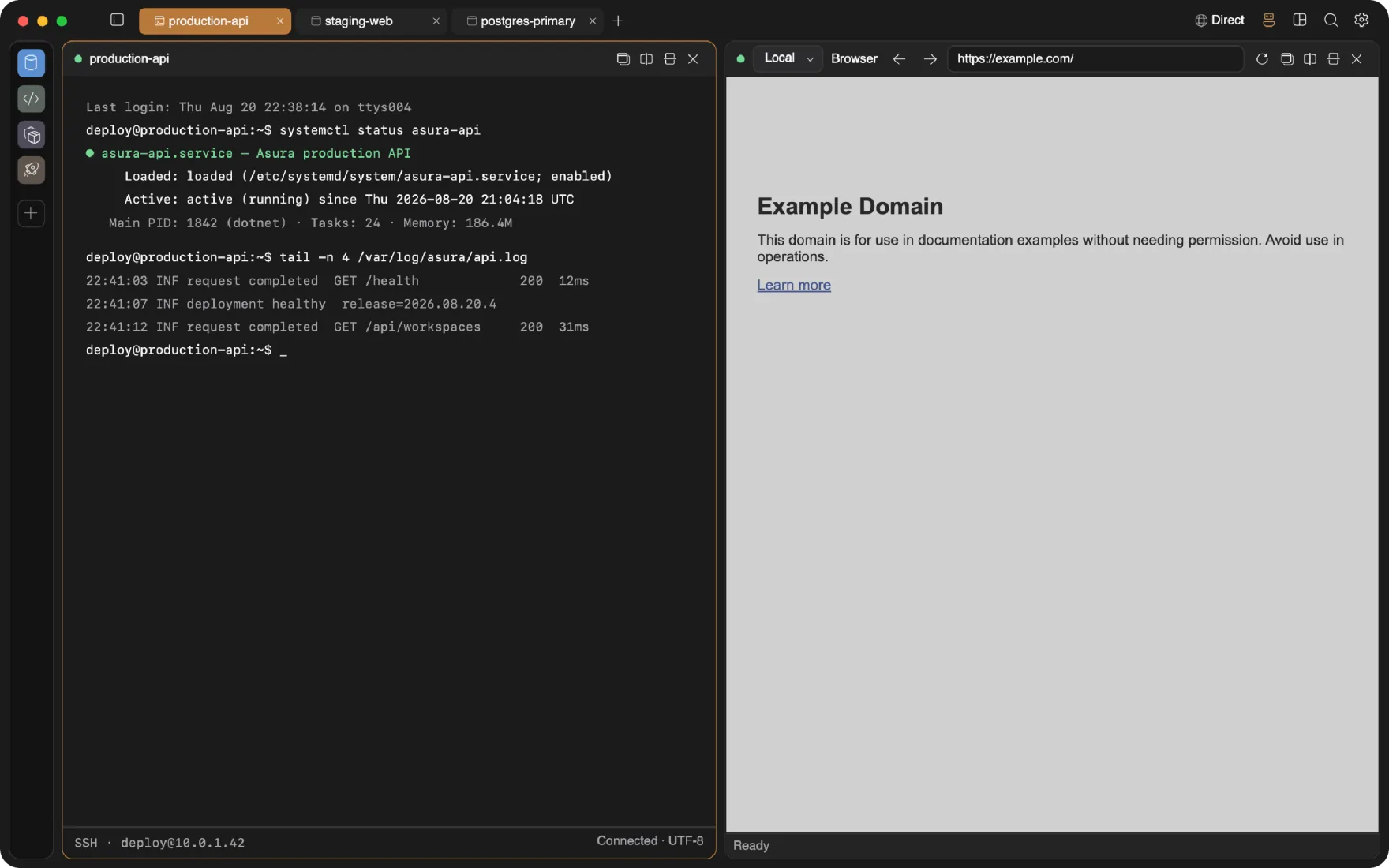
The Ghostty engine, rendered natively. Inline images, clickable links, scrollback that knows where each command starts and ends. A local shell and a remote SSH session are the same panel with a different host.
Session continuity
Close the lid. The build keeps running.
Remote terminals keep their own session running on the server, isolated from anything else you have there. Drop Wi-Fi, switch networks, restart the app: the compile keeps going and the terminal reattaches when you return. It rides on the tmux or GNU Screen already on the box, so there is still nothing to install.
There is also a Quick Terminal: a global hotkey drops a terminal over whatever you are doing, on all three platforms.
Workspaces
Prod, staging, and personal never meet
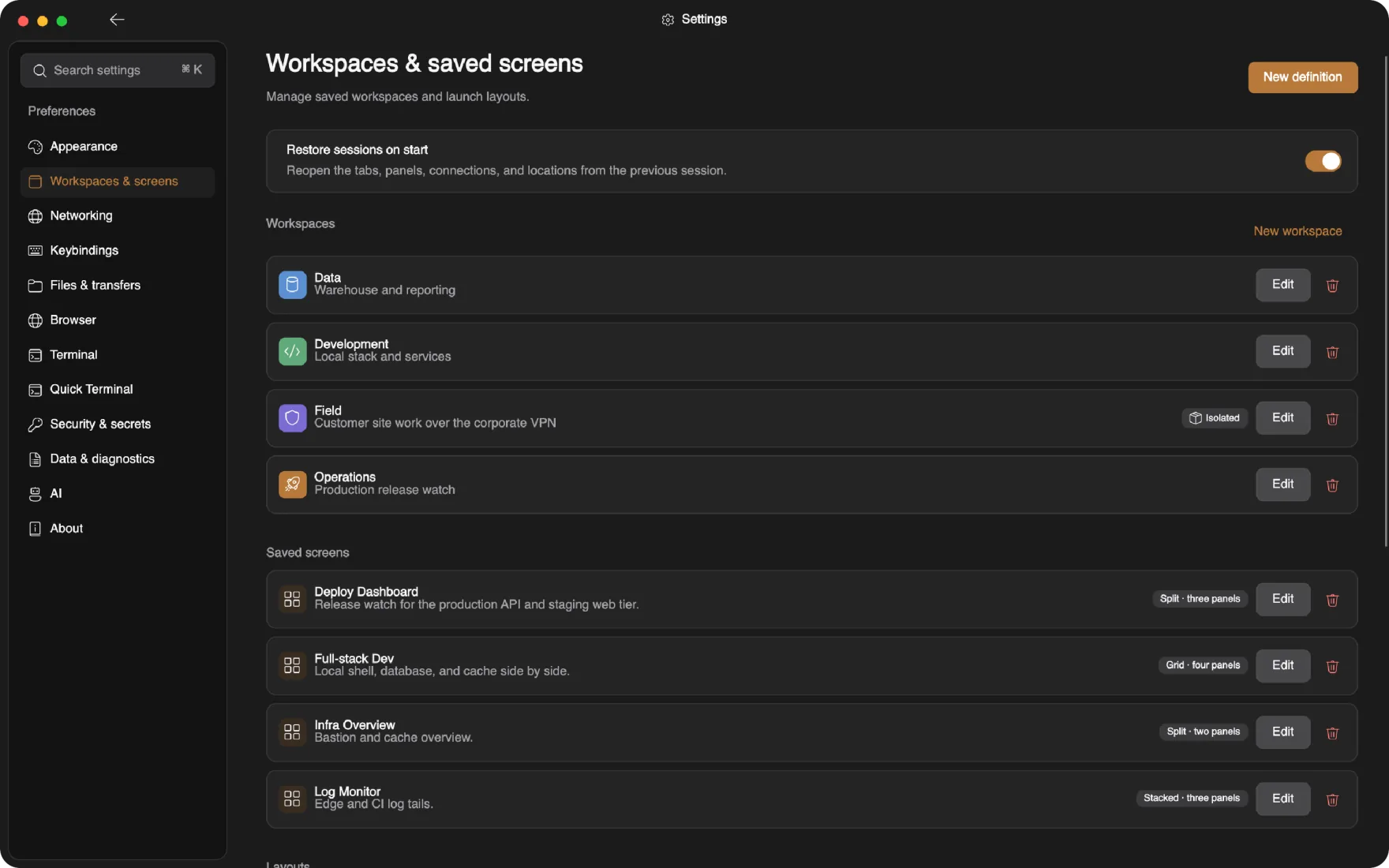
A workspace holds its own connections, tabs, layouts, and browser identity. The embedded browser keeps cookies and sessions per workspace, so the AWS account you are logged into in Client A does not exist in Client B.
- Isolated browser profiles per workspace: separate logins, separate sessions, zero cookie bleed between clients or between work and personal.
- Saved screens: a four-panel layout of terminal, browser, database, and monitor reopens exactly as you left it.
- Workspace-scoped agent: the agent only sees the panels of the workspace it lives in.
Workspace isolation
The whole workspace in its own VM
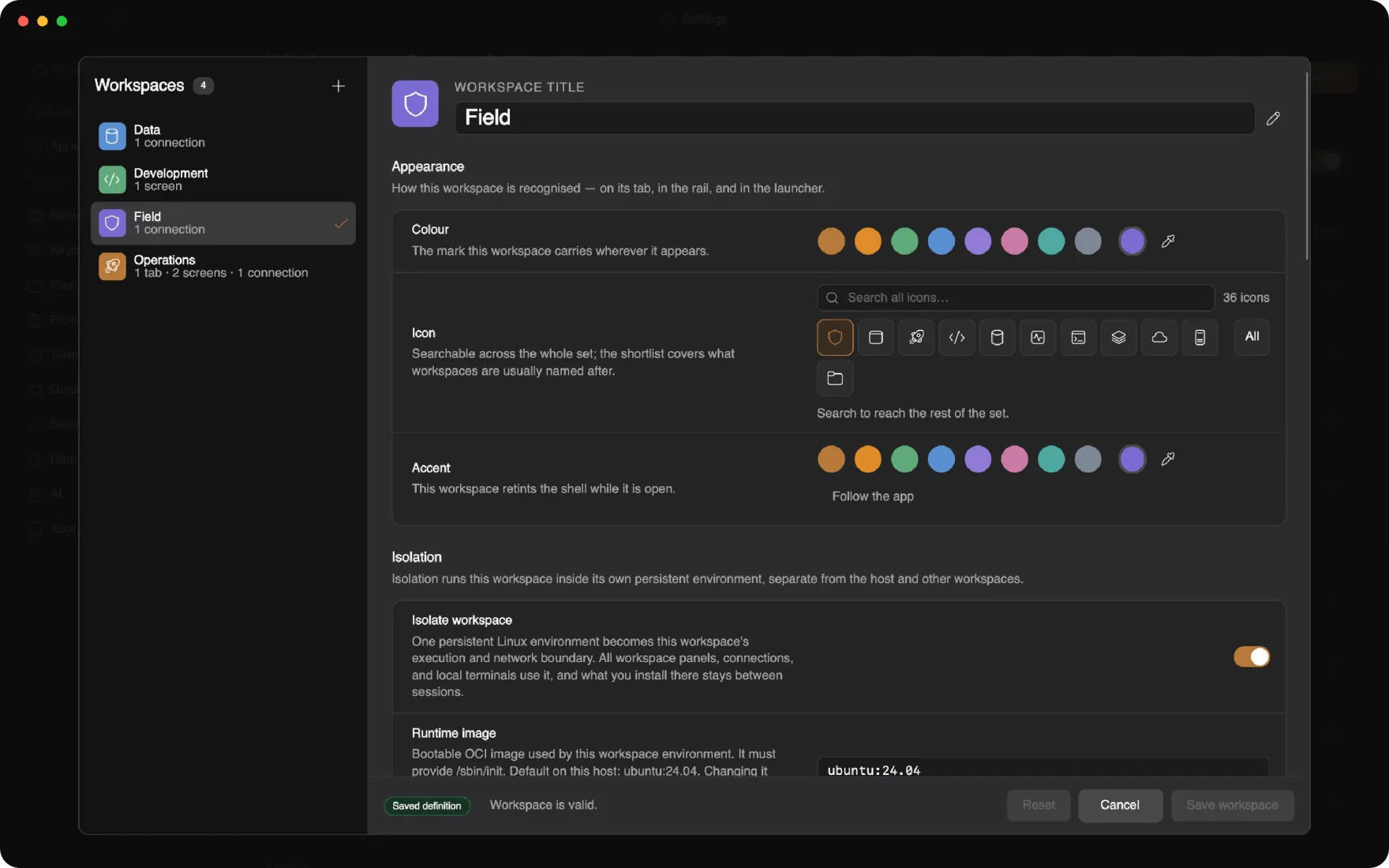
Flip one switch and a workspace runs inside its own persistent Linux environment: a lightweight VM with its own kernel, filesystem, and network namespace. Its terminals, file panel, and browser traffic live in there, and the agent can too. Install whatever the project needs. The host stays clean.
- Persistent by design. Closing the workspace stops the VM, not its disk. Run
apt installonce and it is still there next week. - The host stays private. Nothing is shared unless you mount it: pick host folders per workspace, read-only or read-write, or mount nothing at all.
- Conflicting stacks stop conflicting. One project on Node 18 and Postgres 14, another on Node 22 and Postgres 17, side by side, no version managers.
- Bring your own image. Ubuntu 24.04 by default, or any bootable OCI image with an init.
- The browser follows the workspace: browser panels route through the isolate's network, so they reach exactly what the workspace can reach.
- Give it a network of its own. Pair isolation with a per-workspace VPN or proxy and the VM's only way out is the route you chose, so every process inside obeys it, not only the ones that honour proxy settings.
- macOS on Apple silicon today, on Apple's container runtime (every container is its own lightweight VM). Linux and Windows backends are planned.
Per-workspace networking
Every workspace on its own VPN
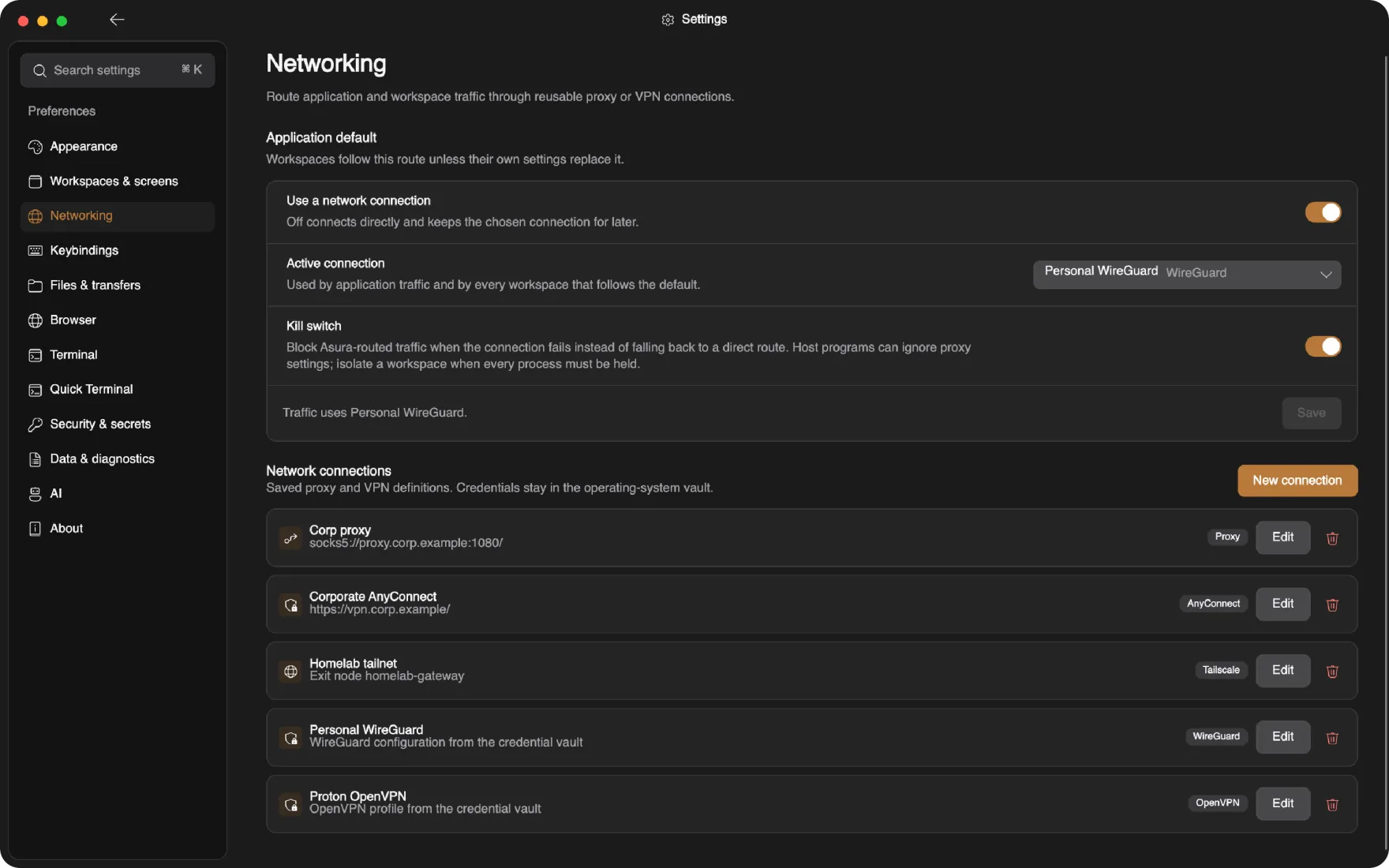
The client workspace on the corporate AnyConnect. The homelab workspace on your Tailscale. The personal one wrapped in WireGuard. All at the same time, in one app, and none of it touching the rest of your machine.
- Five kinds of route: SOCKS5, HTTP, or HTTPS proxy, WireGuard, OpenVPN, Cisco AnyConnect, and a Tailscale exit node. The engines ship inside the app. No VPN client to install, no kernel extension, no admin prompt.
- Nothing system-wide. Each connection is a userspace tunnel the app owns: no system VPN, no change to your routing table, no other program's traffic dragged along with it.
- The whole workspace goes through it. Terminals and SSH, browser panels, files, databases, Docker, Git, MCP servers, and the agent if you run it in there. DNS too, so names resolve inside the tunnel instead of at your ISP.
- One switch in the title bar. Set an app-wide default, give a workspace its own list of allowed connections, then swap or pause the route from the window without editing anything.
- A kill switch. If the tunnel drops, the workspace's traffic stops rather than sliding back onto your direct connection.
- Made for isolation. An isolated workspace's VM has exactly one way out, the route you picked, so every process in it obeys, not only the ones that honour proxy settings.
- Configs, keys, and passwords live in the OS vault, never in the connection definition. A password you would rather not store is asked for at connect time and forgotten afterwards.
Security
Built like it expects to be audited
The security model is not a settings page. It is the architecture.
Everything encrypted
Every record the app writes to disk, from connection profiles to session history, is encrypted with 256-bit AES. Keys derive from your passcode through 600,000 rounds of hardening, and guessing attempts hit a backoff that survives restarts.
Secrets stay in your OS vault
SSH passphrases, API keys, and database passwords live in the macOS Keychain, the Windows credential store, or the Linux Secret Service, never in config files. The app passes around references, hands the real value over a single-use channel only at the moment of use, and wipes it from memory after.
Locked behind your fingerprint
Open the app with Touch ID, Windows Hello, or a PIN. Paste with escape sequences in it? The terminal stops and asks first. A remote process reading your clipboard? Also asks first.
Questions
FAQ
Do I have to install anything on my servers?
No. Everything remote runs over standard SSH and SFTP. Session continuity uses the tmux or GNU Screen already on the box, monitoring samples with plain system commands, and the agent drives a normal PTY. No daemon, no sidecar, no extra open ports.
How does the browser reach a remote localhost?
When you bind a browser panel to an SSH connection, Asura routes that panel through the existing SSH session. Requests to localhost or private subnet addresses resolve on the remote side, so a dev server on the remote machine loads like a local page. No VPN, no manual ssh -L, no proxy config files.
Is this an Electron app?
No. Asura is a native desktop application. The terminal runs on libghostty-vt, the C engine from the Ghostty project, so it feels like Ghostty, not like a web page pretending to be a terminal. The only web engine in the app is the Chromium behind the browser panels, and it never touches the terminal.
Can the AI agent see my passwords or keys?
No. Secrets live in your OS vault (macOS Keychain, Windows credential store, Linux Secret Service) and the app passes around opaque references to them. The agent works with session handles, not credentials. When a subprocess needs a passphrase, it arrives through a single-use, current-user-only pipe and is wiped from memory after use.
What does the agent actually control?
Whatever you approve. Every mutating action needs a one-click approval, or an explicit time-bounded run window you grant for terminal actions. If you start typing in the terminal yourself, the agent loses its input lease immediately. You can watch every keystroke it sends. In the browser it works from accessibility snapshots and element references, page content is treated as untrusted, and every mutation goes through the same approval.
What platforms are supported?
macOS, Windows, and Linux from one codebase. The current early release ships a signed, notarized macOS Apple-silicon build; on other platforms you build from source.
Does a workspace VPN affect the rest of my machine?
No. Each connection runs as a userspace tunnel inside Asura: no system VPN profile, no kernel extension, no change to your routing table. Only the workspaces that chose that connection send traffic through it, and different workspaces can be on different tunnels at the same time. Your browser, mail, and everything else on the machine keep using the network as before.
What happens when a VPN drops?
That is what the kill switch is for. With it on, a workspace whose route fails stops sending traffic until the route is back or you turn networking off for that workspace. It never quietly falls back to your direct connection. Inside an isolated workspace this is enforced by the VM itself, which has no other way out; in a non-isolated workspace it covers everything Asura routes, while a stray program that ignores proxy settings could still reach the network directly.
What does workspace isolation actually isolate?
Each isolated workspace is a persistent Linux container with its own kernel, root filesystem, and network namespace. On macOS it runs on Apple Containerization, where every container is its own lightweight VM. Local terminals, the file panel, and browser traffic run inside it, and you can run the agent there too. The host stays invisible except for the folders you explicitly mount. It needs Apple silicon, macOS 26, and Apple's container runtime, which the app offers to install for you.

Get Asura
Free early release. Signed and notarized macOS build for Apple silicon; Windows and Linux build from source until their packages ship.
Verify the archive against its SHA-256 checksum.